LEARNING LOG
Introduction to Python & Setup
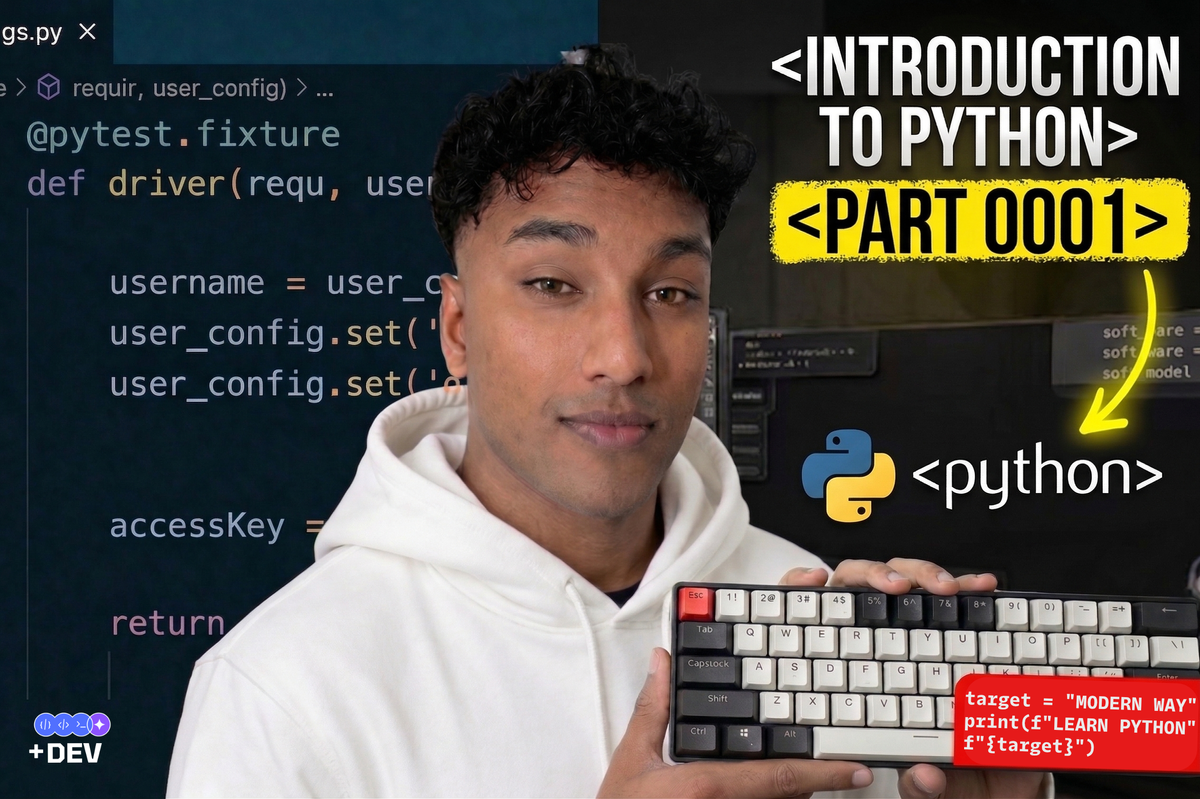
Where is everyone? Whether you're looking to enter the world of software development for the first time or you already know a bit about it, today we're going to talk about something great: Python!
Everyone's talking about Python these days, aren't they? From web development and Artificial Intelligence (AI) to data science and robotics—Python is used for almost everything. So, why has Python become so popular? Today, we’ll discuss that and show you how to set everything up so you can step into the world of Python. Let’s finish off by writing your very first "Hello, World!" program today!
What exactly is Python? (Meaning, why is there so much demand for it?)
Python is a high-level, interpreted programming language. It was created in 1991 by a Dutch programmer named Guido van Rossum.
Now, let’s look at why Python is so valuable:
- Simple and Easy: Python is a very easy language to read and write. Even those just starting out with coding can learn it easily.
- Versatile: Python can be used for many things like Web Development (Django, Flask), Data Analysis (Pandas, NumPy), Machine Learning (Scikit-learn, TensorFlow, PyTorch), AI, and Automation.
- Massive Community: Python has a huge user community. If you run into a problem, it’s easy to ask for help, get support, and find tutorials.
- Plenty of Libraries and Frameworks: There are many libraries and frameworks available for Python. By using these, we can make our work easier without having to write extra code.
Python 2 vs. Python 3: Which one to use? There were mainly two versions of Python—Python 2 and Python 3. Support for Python 2 has ended now. Therefore, if you are learning Python as a beginner, make sure to use Python 3!
Shall we get started? Let's set up the Development Environment!
Before we start writing code in Python, we need to do a little preparation. This is what we call the Development Environment. We mainly need three things for this:
- Python Interpreter: This is what translates our Python code into a language the computer understands (Machine Language) to get the job done.
- Code Editor / IDE (Integrated Development Environment): We need something like this to write, save, and run our code. Let's use VS Code (Visual Studio Code) today. It’s free, lightweight, and very capable.
- Virtual Environments: This is something you definitely should use. It’s used to keep a Python project's packages and dependencies separate so they don't affect other projects. It is a great habit to start using this from the very beginning.
First step: Let's install Python!
Now we are going to install Python. This is common for Windows, macOS, and Linux; even though there are minor differences, the process is the same.
For Windows:
- First, go to the Python Official Website.
- Click the "Download Python" button (download the latest Python 3 version).
- Open the downloaded installer file (the .exe file).
- When running the installer, make sure to check the "Add Python.exe to PATH" option. This is very important.
- Click "Install Now" to finish the installation.
For macOS:
- Go to the Python Official Website and download the macOS installer.
- Open the downloaded .pkg file and follow the instructions to install it.
For Linux:
Most Linux distributions come with Python pre-installed. If you need Python 3, open the terminal and enter this command:
sudo apt update
sudo apt install python3 python3-pip
Let's check if the installation was successful:
Now, open the Command Prompt (Windows) or Terminal (macOS, Linux) and type this command:
C:\Users\Nipuna> python --versionThis will show you the Python version. For example, if something like Python 3.12.2 appears, it was successful!
C:\Users\Nipuna> python --version
Python 3.12.2

C:\Users\Nipuna>
Let's set up VS Code/PyCharm!
Visual Studio Code (VS Code)
VS Code is a free, lightweight, and very powerful code editor. It’s awesome for Python.
- First, go to the VS Code Official Website and download the installer for your OS.
- Run the installer and follow the instructions to install VS Code.
- Open VS Code. Click the Extensions icon on the left (the one that looks like four squares) or press Ctrl+Shift+X (Windows/Linux) / Cmd+Shift+X (macOS).
- Type "Python" in the search bar. Install the "Python" extension created by Microsoft. This will give your Python code features like Syntax Highlighting, Autocompletion, and Debugging.
PyCharm (As an alternative) PyCharm is an IDE specifically made for Python. If you want, you can download the Community Edition here.
Shall we say "Hello, World!"? (Yes, that's the first one!)
Now for the real deal! Let's make our first Python program. Like always, let's start with "Hello, World!"
Let's create a Virtual Environment:
When starting a project, the best practice is to first create a Virtual Environment. Here is how you do it:
- Create a new folder wherever you like to code (for example, something like
C:\PythonProjects). Let's name thismy_first_python_project. - Open VS Code, go to "File" > "Open Folder...", and open the
my_first_python_projectfolder you created. - Open the Terminal in VS Code by going to Terminal > New Terminal, or press Ctrl +
(Windows/Linux) / Cmd +(macOS). - Now you need to activate the Virtual Environment. The command varies depending on your OS: Once the Virtual Environment is activated, you will see
(.venv)in parentheses at the beginning of the terminal line. That means it's working! - macOS:
nipuna@MacBook-Pro ~ % source .venv/bin/activateLinux:
nipuna@MyLinuxVM:~$ source .venv/bin/activateWindows(powerShell)
PS C:\Users\Nipuna> .\.venv\Scripts\Activate.ps1
(.venv) PS C:\Users\Nipuna>
Type this command in the VS Code Terminal (this will create a Virtual Environment named .venv):
nipuna@MyLinuxVM:~$ python -m venv .venv(Sometimes it might be python3 -m venv .venv).
Let's write the "Hello, World!" program:
- Go to the "Explorer" in VS Code and create a new file inside the
my_first_python_projectfolder. Name ithello.py. (.pyis the extension used for Python files). - Save the file (Ctrl+S / Cmd+S).
- Open the
hello.pyfile and type this code:
print("Hello, World! From Sri Lanka to Japan ! ")print() is a built-in Python function; if you want to show something on the screen, you use this.
Let's Run the Program:
Now, in the Terminal already open in VS Code (provided the Virtual Environment is activated), enter this command:
nipuna@MyLinuxVM:~$ python hello.pyNow look, Hello, World! From Sri Lanka to Japan ! should be printed in the Terminal. If that happened, you’ve succeeded! As of today, you are a Python Programmer!
Troubleshooting and Best Practices
Common Errors:
- ModuleNotFoundError: No module named 'xyz': This error occurs when a Python package required for your project hasn't been installed. You can fix this using the
pip install package_namecommand. (pip is the Package Installer for Python). Note: You must activate your Virtual Environment before doing this! - Syntax Errors: These happen when Python's rules (syntax) are broken while writing code. These can be small mistakes. Examples: missing parentheses (), indentation errors, or missing colons (:). If the error message says "SyntaxError," look closely at that line.
Best Practices:
- Use Virtual Environments: Create a separate Virtual Environment for every project.
- Add Comments to your Code: Get into the habit of adding comments using the
#mark while writing code. This makes it easier for someone else, or even yourself, to understand when looking at the code again. - Use Version Control (Git): Practice saving your code changes using a Version Control System like Git.
That's it, right?
So, today we talked about what Python is, why it's so valuable, how to install Python on your computer, how to set up VS Code, how to create a Virtual Environment, and how to write and run our first "Hello, World!" program. We also looked at how to solve issues if they arise.
Now you can enter the world of Python. Try writing small programs. The most important thing is practice.
We'll meet again soon with something new. Until then, good luck to everyone!!